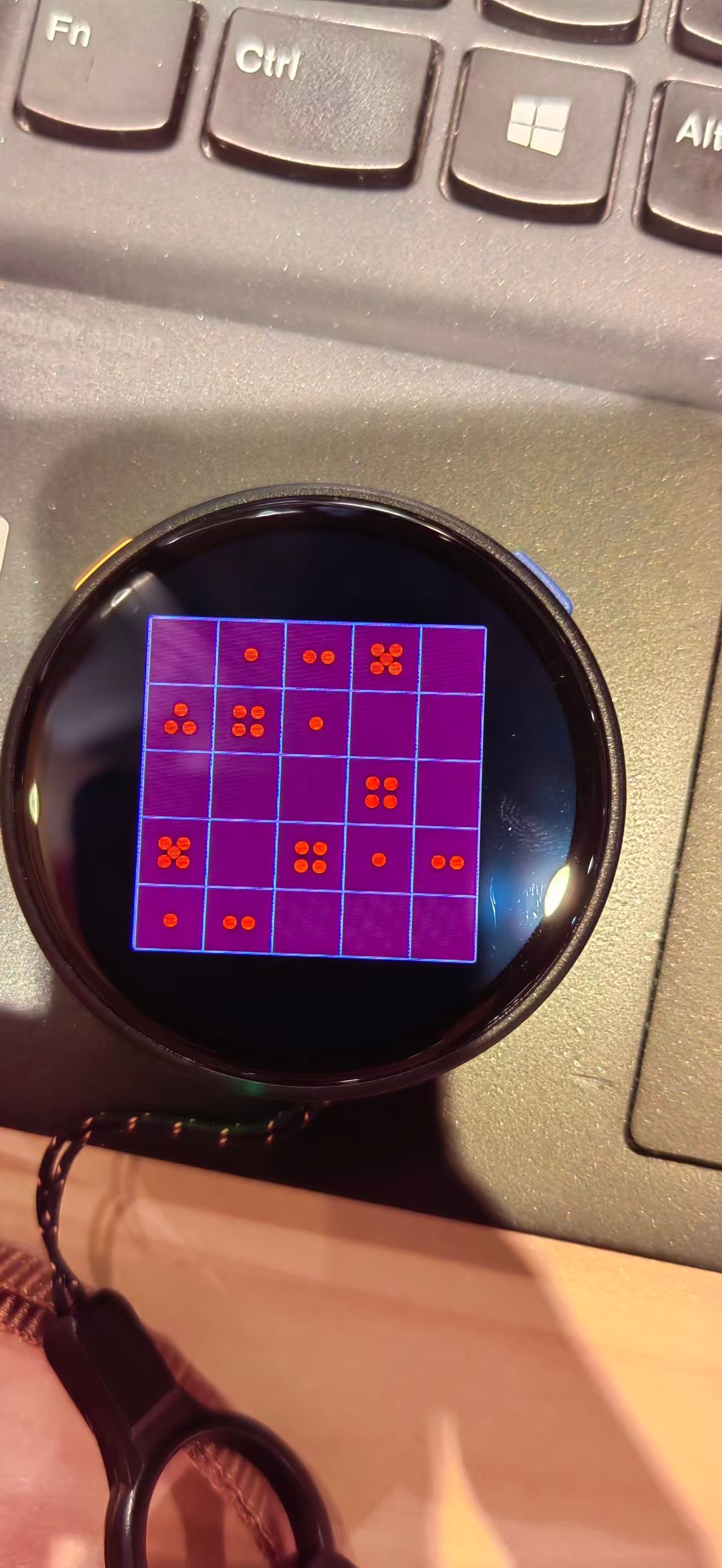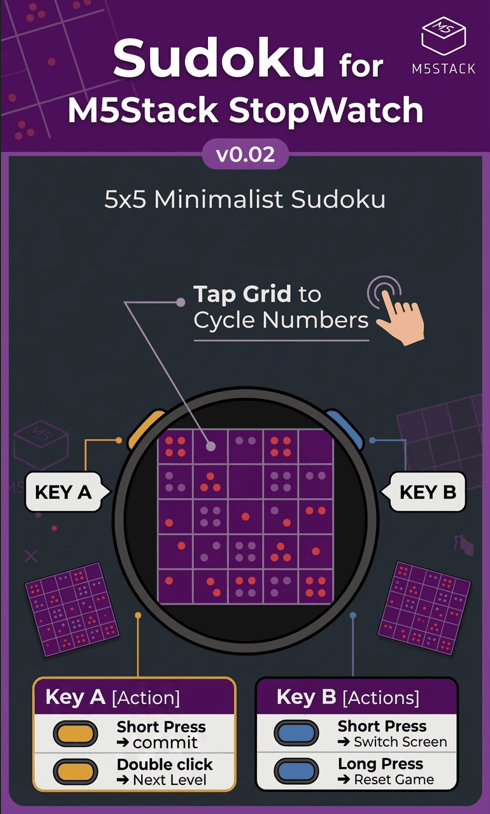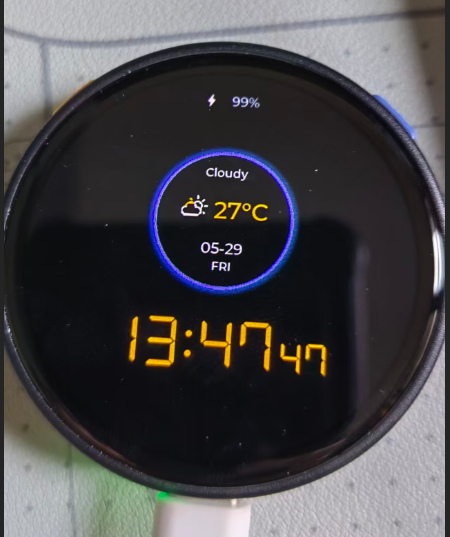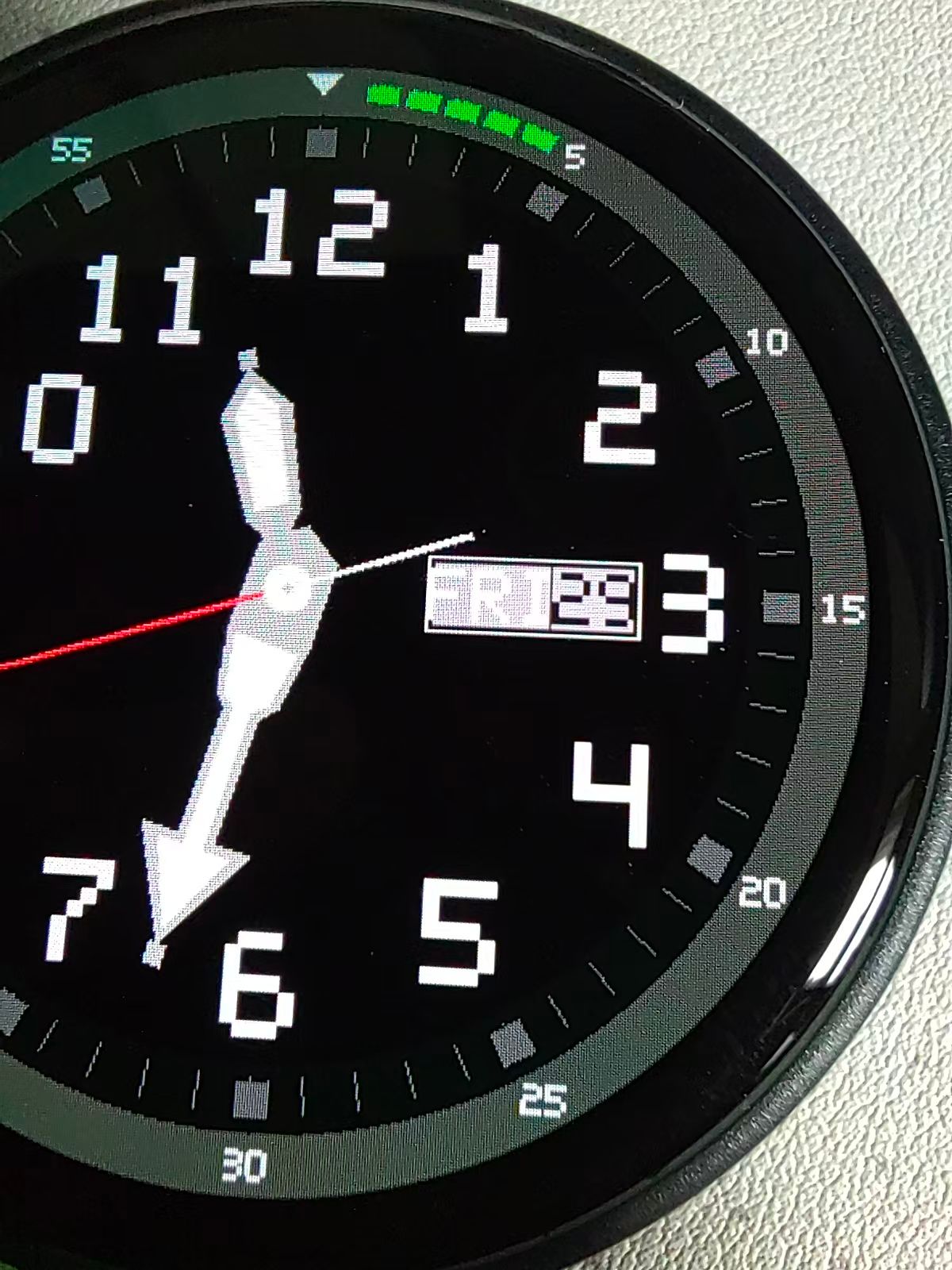
PS:
Long press the A + B buttons for 3 seconds to enter or exit Configuration Mode.
After connecting to Wi-Fi, select your city in Advanced Options to get the local weather forecast.
PS:
Long press the A + B buttons for 3 seconds to enter or exit Configuration Mode.
After connecting to Wi-Fi, select your city in Advanced Options to get the local weather forecast.
ChroneCore
Configure WiFi in Settings , and App can Get Weather in Your City.(China Only)
This App can be burn Using the M5 Burner.
Search ChroneCore
Device Type=StopWatch


@shmusica
configure the WiFi and Select the Game
Screen Shoot

Download & Burn the Firmware from M5Burner:
Device Type: Tab5
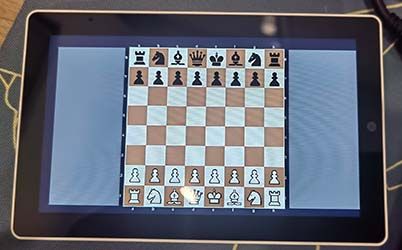
Search: CHESS For M5Stack Tab5
It's that simple! Enjoy The Chess game! 🎮

Chess for M5Stack Tab5
Game Introduction
A full-featured chess game for M5Stack Tab5. Play against AI locally or connect to a remote Stockfish engine for stronger opponents. Standard rules: castling, en passant, promotion, check/checkmate.
Features:
Local mode: Human vs built-in AI (no WiFi)
Online mode: Human vs remote Stockfish (WiFi required)
Touch input, board coordinates (a–h, 1–8)
Captured pieces shown on sides
Sound effects for moves and game end
Quick Start
Launch the Chess app from the app launcher.
Choose mode:
Local – Play offline vs device AI
Online – Play vs remote engine (needs WiFi)
Play: Tap a piece to select (yellow highlight), tap a legal square to move.
Promotion: When a pawn reaches the 8th rank, tap Queen/Rook/Knight/Bishop to promote.
Controls
Action How
Select piece Tap your piece
Move Tap a highlighted legal square
Cancel selection Tap the same piece again
Switch piece Tap another of your pieces
Promote pawn Tap Q/R/N/B in the promotion strip
WiFi Setup (for Online mode)
On the app launcher, tap the WiFi button at the top (shows "WiFi Disconnected" when off).
Enter your SSID and password, then tap Connect.
Wait until it shows "WiFi Connected". The Start Chess button will then be enabled.
Saved networks appear in the recent list for quick reconnect.
Requirements
Device: M5Stack Tab5
Online mode: WiFi connected
Firmware: Flash the provided firmware to your Tab5
Tips
Yellow = selected piece. Blue = legal move targets.
Green = last AI move.
Game-over screen shows Restart option.
DOWNLOAD:
M5 FirmWare Burner
@aitzbergh hi~ maybe here is the solution way:
MP3 Conversion for WaveFlow Player
Problem: Some MP3 files may not play due to format issues.
Solution: Convert your files using FFmpeg.
Quick Steps:
1、Visit the official FFmpeg website and Install FFMpeg: https://ffmpeg.org/download.html
2、Download the Conversion Script from Github : https://github.com/musicaJack/M5Stack_Tab5_Converter/blob/main/mp3_convert.py
3、Place the Python script (mp3_convert.py) in the same directory with your MP3 files
4、Run the conversion script: python mp3_convert.py
5、Copy fixed mp3 files to TF Card in mp3 directory

Touch & M5 Stick2 module is also support!
plug M5 Stick2 module into Port.A
And have fun with you Stick2 Module Control!

| What to Do | How to Do It |
|---|---|
| ⬅️ Move Left | Swipe left on the screen |
| ➡️ Move Right | Swipe right on the screen |
| 🔄 Rotate Piece | Tap/Click on the screen |
| ⬇️ Hard Drop | Swipe down on the screen |
| 🎵 Sound Effects | Automatically plays when moving, clearing lines, or pieces land |
| Location | What's There | What It Does |
|---|---|---|
| Top-Left | Score Display | Shows current score |
| Top-Center | Level Display | Shows current level (increases as you clear lines) |
| Top-Right | Lines Display | Shows total lines cleared |
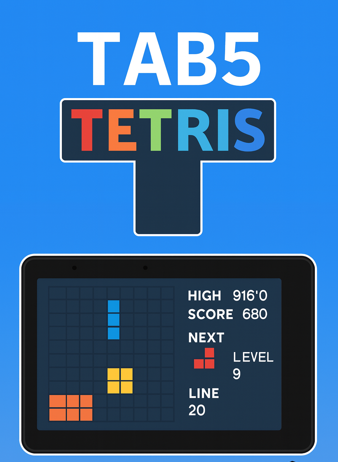
| Middle | Game Board | Main playing area (10x20 grid) |
| Middle | Current Piece | The falling tetromino you control |
| Middle | Ghost Piece | Shows where the piece will land (semi-transparent) |
| Middle | Next Piece Preview | Shows the next piece coming |
✅ Objective: Fill complete horizontal lines to clear them and score points
✅ Scoring:
✅ Level Up: Every 10 lines cleared increases the level (faster falling speed)
✅ Game Over: Game ends when new pieces can't spawn at the top
✅ Single Block Movement: Each left/right swipe moves the piece exactly 1 block
✅ Hard Drop: Swipe down to instantly drop the piece to the bottom
✅ Rotation: Tap anywhere on the screen to rotate the current piece
✅ Sound Effects:
✅ Auto Fall: Pieces automatically fall down at increasing speed as level increases
✅ Ghost Piece: Semi-transparent preview shows where the piece will land
✅ Next Piece Preview: Always shows what piece is coming next
| Gesture | Action | Notes |
|---|---|---|
| ← Swipe Left | Move left 1 block | Can swipe continuously while holding |
| → Swipe Right | Move right 1 block | Can swipe continuously while holding |
| ↓ Swipe Down | Hard drop to bottom | Instantly drops piece |
| Tap/Click | Rotate piece | Rotates 90° clockwise |
Device Type: Tab5
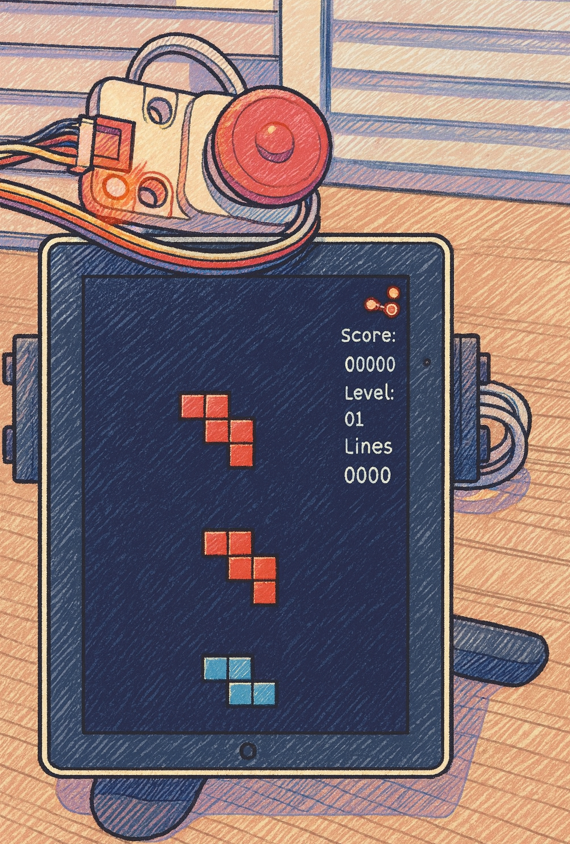
Search: Tetris For M5Stack Tab5
It's that simple! Enjoy your classic Tetris game! 🎮

| What to Do | How to Do It |
|---|---|
| 🎵 Play Music | Double-click a song in the file list |
| ⏹️ Stop Playing | Click the red "Stop" button at top-left |
| ⏮️ Previous Song | Click the "Prev" button on the left |
| ⏭️ Next Song | Click the "Next" button on the right |
| 🔊 Adjust Volume | Drag the slider at top-right |
| 🔒 Turn Off Screen | Click "Lock Screen" button at top-center |
| 👆 Turn On Screen | Touch anywhere on screen after it's off |
| 📱 Auto Play | Songs automatically play the next one when finished |
| 🎧 Plug Headphone | After plugging in 3.5mm headphone, sound automatically switches to headphone |
| 🔊 Unplug Headphone | After unplugging headphone, sound automatically switches to speaker |
| Location | What's There | What It Does |
|---|---|---|
| Top-Left | Red "Stop" button | Stop playing (only shows when playing) |
| Top-Center | "Lock Screen" button | Turn screen off/on |
| Top-Right | Volume display and slider | Adjust volume level |
| Middle | Song name and progress bar | Shows the song being played |
| Middle | Colorful spectrum | Shows music rhythm (when playing) |
| Bottom | "Prev" button | Switch to previous song |
| Bottom | File list | Shows all songs |
| Bottom | "Next" button | Switch to next song |
✅ SD Card Required: Insert SD card before use
✅ File Location: MP3 files must be placed in the mp3 folder on the TF card
✅ Auto Play: Songs automatically play the next one when finished
✅ Screen Off: Music keeps playing when screen is off, touch screen to turn it on
✅ Double-Click to Play: Double-click a song in the file list to play
✅ Headphone Plug/Unplug: Sound automatically switches to headphone when plugged in, and to speaker when unplugged
Download & Burn the Firmware from M5Burner:
Device Type: Tab5
Search: WaveFlow Player For TAB5
It's that simple! Enjoy your music! 🎶
MP3 Conversion for WaveFlow Player
Problem: Some MP3 files may not play due to format issues.
Solution: Convert your files using FFmpeg.
Quick Steps:
1、Visit the official FFmpeg website and Install FFMpeg: https://ffmpeg.org/download.html
2、Download the Conversion Script from Github : https://github.com/musicaJack/M5Stack_Tab5_Converter/blob/main/mp3_convert.py
3、Place the Python script (mp3_convert.py) in the same directory with your MP3 files
4、Run the conversion script: python mp3_convert.py
5、Copy fixed mp3 files to TF Card in mp3 directory
PS:
Bonus: Picture Viewer Feature
Want to view Jpeg images?
The main menu includes a picture viewer app!
To view your photos:
Prepare Images: Convert your JPEG files to 1280x720 resolution in BASELINE format (a conversion script is available on GitHub)
*** Copy to TF Card: Place the converted JPEG files on your TF card, files must be placed in the mp3 folder on the TF card! ***
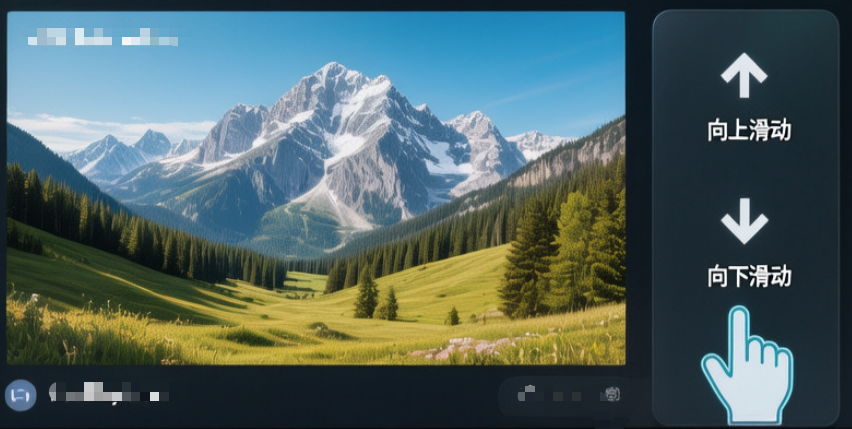
Swipe to Browse: From the main menu, open the picture viewer app, then simply swipe up or down on the right side of the screen to navigate through your photos.
To browse through your collection of JPEG images:
JPEG Viewer for M5Stack Tab5
To browse through your collection of JPEG images:
Step1: User Python Script Convert the JPEG Files to 1280x720 in BASELINE Format. (You Can Download the Python Script from Github)
Step2: Copy JPEG Files to TF CARD.
Step3: simply swipe up or down on the RIGHT SIDE of the screen.
Swipe UP: View the next photo in the sequence.
Swipe Down: View the previous photo.
JPEG convert Download:
https://github.com/musicaJack/M5Stack_Tab5_JPEG_Converter/blob/main/convert.py
This App Can be Download from M5 Burner:
Device Type: ALL
Seach Context: JPEG Viewer for M5Stack Tab5
Share Code: BWCRZv58BgBF5ntH
JPEG Viewer for M5Stack Tab5:

This APP unlocks a simple and intuitive way to browse JPEG images directly from a TF (MicroSD) card on your Tab5's display.
Just Simply swipe up or down on the right side of the screen to navigate through your photo collection
Effortlessly Browse Photos with a Swipe
To browse through your collection of JPEG images:
Step1: Copy JPEG Files to TF CARD and Power On the Tab5.
Step2: simply swipe up or down on the RIGHT SIDE of the screen.
Swipe Up: View the next photo in the sequence.
Swipe Down: View the previous photo.
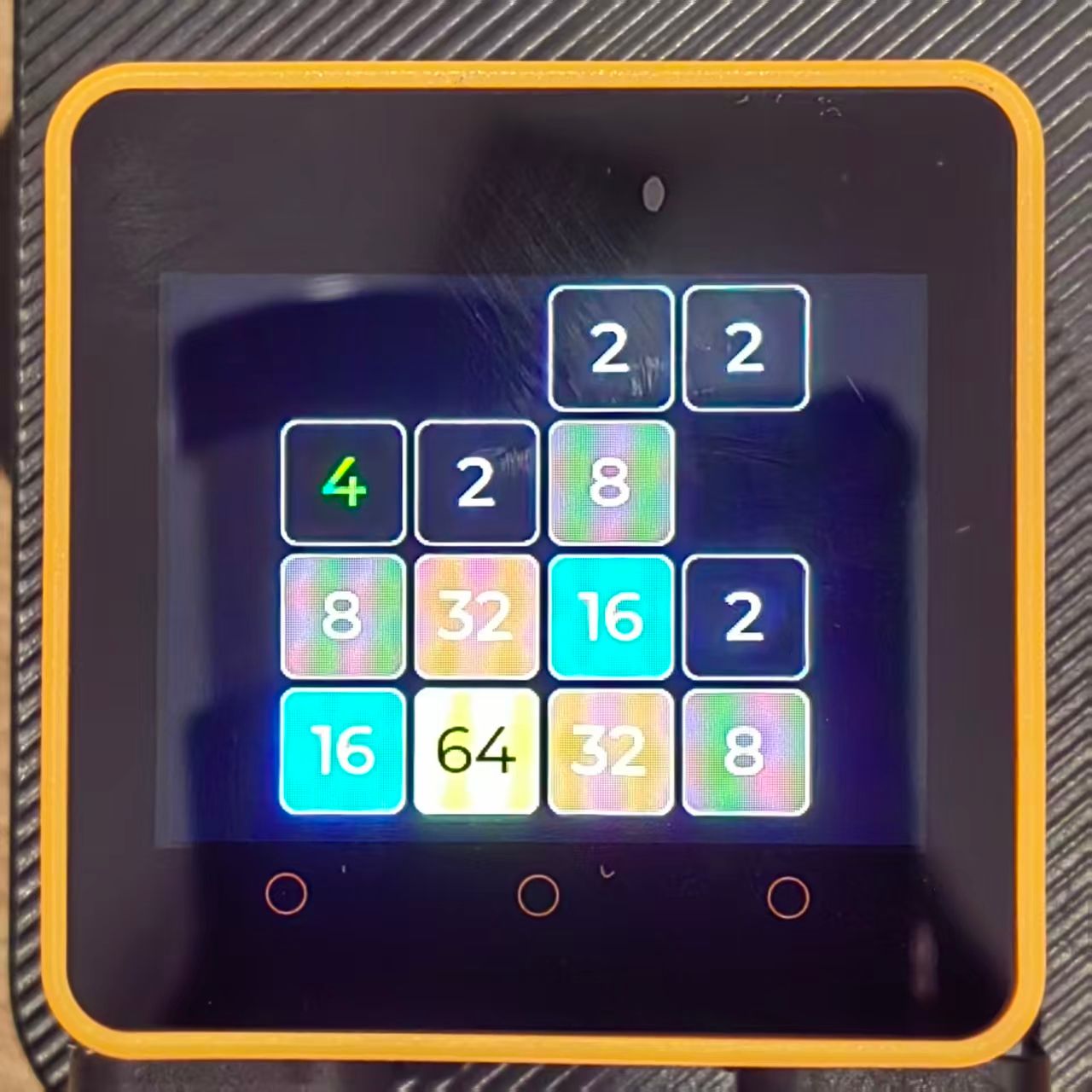
HI, Everybody!
I'm excited to share my latest project with you all:
A specially designed 2048 puzzle game for the M5Stack Core2!
This implementation fully utilizes the Core2's touchscreen for intuitive swipe controls and provides satisfying vibration feedback whenever tiles merge.
It's a classic game reimagined for our favorite device.
I hope this can be a fun demo or a starting point for others learning to work with the Core2's interactive features.
All feedback and suggestions are welcome!
Firmware Downloader: M5Burner App
Core2 & TOUGH Search : Game 2048 For Core2 AWS
M5Burner Share Code: 5S9lfbJuU79MXKDp